Tuesday, 2 July 2024

Upgrade Opencart 2.3.x to 3.x.x

 Upgrading one of my stores I encountered the following error:


Fatal error: 

Uncaught Exception: 

Error: Could not load template adaptor ! in /home/u572407319/public_html/system/library/template.php:11 

Stack trace: #0 /home/u572407319/public_html/system/storage/modification/system/engine/loader.php(81): 


Template->__construct(NULL) #1 /home/u572407319/public_html/install/controller/common/header.php(14): Loader-


>view('common/header', Array) #2 /home/u572407319/public_html/system/storage/modification/system/engine/action.php(51): 


ControllerCommonHeader->index(Array) #3 /home/u572407319/public_html/system/storage/modification/system/engine/loader.php(24): Action-


>execute(Object(Registry), Array) #4 /home/u572407319/public_html/install/controller/upgrade/upgrade.php(28): Loader-


>controller('common/header') #5 /home/u572407319/public_html/system/storage/modification/system/engine/action.php(51): ControllerUpgradeUpgrade->index() 


#6 /home/u572407319/public_html/system/engine/router.php(34): Action->execute(Object(Registry)) 


#7 /home/u572407319/public_html/system/engine/router.php(29): Router in /home/u572407319/public_html/system/library/template.php on line 11


Below is what can be done to fix this:


The issue is the template adapters are set by system/config/catalog.php


// Template

$_[‘template_engine’] = ‘twig’;


Way to resolve it is, clear your modification directory! (system/storage/modification)

Sunday, 19 December 2021

Forgot / Change / reset your Windows 10 password

 Reset your Windows 10 local account password

  1. Manually power-off system 3 times ( illegal shut down - press the power button)
  2. Power on - You can see "  Preparing Automatic Repair "
  3. Go to Advanced Option on the screen
  4. Click on Troubleshoot Option
  5. Go to Advanced Option on the screen
  6. Go to System Image Recovery  on the screen
  7. On popup " Cancel "  then " Next "
  8. Click to Advanced button  ==> Install a driver  ==> click " OK "
  9. It will open a popup file browser windows/system32 folder
  10. Find the file  Utilman  and rename it to utimanold , refresh, then rename file " cmd "  to Utilman
  11. Close close ( cancel cancel ) popups and then " choose an option Continue "
  12. After restart ->on bottom right corner you can see second icon " Ease of access " , it will open command prompt
  13. c:/windows/system32
  14.  Type " net user "  and enter , you can see a list administrator , users in the system
  15. Type " net user user *   "  ( where second user is the username for laptop) and enter
  16. close then click arrow icon of login

Friday, 26 November 2021

connect to Linux by name instead of ip address

 connect to linux by name instead of ip address

Go to ~/.ssh/config

Host dev
  HostName XXX.XX.XX.XXXX
  IdentityFile ~/.ssh/id_rsa
  User xxxxxxxxxxxx
  AddKeysToAgent yes

Monday, 19 July 2021

Search and Replace For a Text String in wordpress posts


Search and Replace For a Text String

UPDATE wp_posts SET post_content = REPLACE (  post_content,  'text to find here',  'text to replace here');

Monday, 12 July 2021

Turn off caching using .htaccess

Disabling caching

Add this code at the bottom of the .htaccess file to turn off caching. Delete the code to turn caching on again.

# DISABLE CACHING
<IfModule mod_headers.c>
    Header set Cache-Control "no-cache, no-store, must-revalidate"
    Header set Pragma "no-cache"
    Header set Expires 0
</IfModule>

<FilesMatch "\.(css|flv|gif|htm|html|ico|jpe|jpeg|jpg|js|mp3|mp4|png|pdf|php|txt)$">
    <IfModule mod_expires.c>
        ExpiresActive Off
    </IfModule>
    <IfModule mod_headers.c>
        FileETag None
        Header unset ETag
        Header unset Pragma
        Header unset Cache-Control
        Header unset Last-Modified
        Header set Pragma "no-cache"
        Header set Cache-Control "max-age=0, no-cache, no-store, must-revalidate"
        Header set Expires "Thu, 1 Jan 1970 00:00:00 GMT"
    </IfModule>
</FilesMatch>

Monday, 21 June 2021

Get Last Executed Query in Laravel

 Last Query in Laravel

DB::enableQueryLog();
$product = Product::get();
$query = DB::getQueryLog();
dd($query);
  1. \DB::enableQueryLog();
  2. $list = \DB::table("categories")->get();
  3. $query = \DB::getQueryLog();
  4. print_r(end($query));

Friday, 21 June 2019

Best leading PHP frameworks in 2019

The top 10 PHP frameworks

Here’s a list of the best PHP frameworks, based on popularity and ability to facilitate application development.

  1. Laravel
  2. Symfony
  3. CodeIgniter
  4. Zend
  5. CakePHP
  6. FuelPHP
  7. Yii 2
  8. Phalcon
  9. Slim
  10. PHPixie


1. Laravel


If frameworks were people, Laravel would probably be the king. If you want to code beautiful designs, you’re looking for Laravel since it’s positioned as the go-to PHP framework for web artisans.
The reason for its wide popularity boils down to ease of use and virtually no learning curve. And despite that, it’s a framework developer use for some serious work. So it may seem like a simple tool at first, but it’s a beast when it comes to producing concrete work.

2. Symfony

When it comes to developing large-scale enterprise projects, Symfony makes a perfect choice amongst the PHP frameworks. Its ecosystem is a huge one, with a big set of reusable components and an active community of developers. The components serve the purpose of completing diverse tasks such as for creation, the configuration of objects, authentication, routing, templating, and much more. These components are being used to power up projects such as Drupal, Laravel, PHPBB, PIWIk, and OROCRM.

3. CodeIgniter

CodeIgniter is one of the oldest frameworks but is simple and powerful. It can easily be installed and requires minimal user configuration. It works perfectly on almost all shared and dedicated hosting platforms. CodeIgniter isn’t entirely based on the MVC framework. Models and Views are optional, but Controller classes are a must. Another strength of CodeIgniter is speed. It runs faster with database tasks in comparison to other frameworks. CodeIgniter is well documented and a good framework to start with for PHP beginners.

Sunday, 21 January 2018

Delete Documents in MongoDB Collection

Delete Methods

MongoDB provides the following methods to delete documents of a collection:
db.collection.remove({})Delete a single document or all documents that match a specified filter.
db.collection.deleteOne({})Delete at most a single document that match a specified filter even though multiple documents may match the specified filter.
db.collection.deleteMany({})Delete all documents that match a specified filter.
Eg:-  db.users.deleteMany({ status : "A" })

      db.users.deleteOne( { status: "D" } )

      db.getCollection('Users').find({$and:[{"cid":2}, {"created-at":{ "$gte" : new ISODate("2018-01-22")}} ]})

Friday, 29 December 2017

Tax benefit on Home Loan

Tax benefit on Home Loan (Principal Amount)

The amount paid as Repayment of Principal Amount of Home Loan by an Individual/HUF is allowed as tax deduction under Section 80C of the Income Tax Act. The maximum tax deduction allowed under Section 80C is Rs. 1,50,000.

This tax deduction is the total of the deduction allowed under Section 80C and includes amount invested in PPF Account, Tax Saving Fixed Deposits, Equity Oriented Mutual funds, National Savings Certificate etc.
This tax deduction under Section 80C is available on payment basis irrespective of the year for which the payment has been made. The Amount paid as Stamp Duty & Registration Fee is also allowed as tax deduction under Section 80C even if the Assessee has not taken Loan.

However, tax benefit of home loan under this section for repayment of principal part of the home loan is allowed only after the construction is complete and the completion certificate has been awarded. No deduction would be allowed under this section for repayment of principal for those years during which the property was under construction.

TAX BENEFIT ON HOME LOAN (INTEREST AMOUNT)

Tax Benefit on Home Loan for payment of Interest is allowed as a deduction under Section 24 of the Income Tax Act. As per Section 24, the Income from House Property shall be reduced by the amount of Interest paid on Home Loan where the loan has been taken for the purpose of Purchase/ Construction/ Repair/ Renewal/ Reconstruction of a Residential House Property.
The maximum tax deduction allowed under Section 24 of a self-occupied property is subject to a maximum limit of Rs. 2 Lakhs (increased in Budget 2014 from 1.5 Lakhs to Rs. 2 Lakhs).
In case the property for which the Home Loan has been taken is not self-occupied, no maximum limithas been prescribed in this case and the taxpayer can take tax deduction of the whole interest amount under Section 24.

Thursday, 2 February 2017

Publishing your android App to Google Play Store

Publishing your app

$ cordova plugin rm cordova-plugin-console
$ cordova build --release android
This will generate a release build based on the settings in your config.xml. Your Ionic app will have preset default values in this file, but if you need to customize how your app is built, you can edit this file to fit your preferences. Check out the config.xml file documentation for more information.
Next, we can find our unsigned APK file in platforms/android/build/outputs/apk. In our example, the file was platforms/android/build/outputs/apk/HelloWorld-release-unsigned.apk. Now, we need to sign the unsigned APK and run an alignment utility on it to optimize it and prepare it for the app store. If you already have a signing key, skip these steps and use that one instead.
Let’s generate our private key using the keytool command that comes with the JDK. If this tool isn’t found, refer to the installation guide:
$ keytool -genkey -v -keystore my-release-key.keystore -alias alias_name -keyalg RSA -keysize 2048 -validity 10000
You’ll first be prompted to create a password for the keystore. Then, answer the rest of the nice tools’s questions and when it’s all done, you should have a file called my-release-key.keystore created in the current directory.
Note: Make sure to save this file somewhere safe, if you lose it you won’t be able to submit updates to your app!
To sign the unsigned APK, run the jarsigner tool which is also included in the JDK:
$ jarsigner -verbose -sigalg SHA1withRSA -digestalg SHA1 -keystore my-release-key.keystore HelloWorld-release-unsigned.apk alias_name
This signs the apk in place. Finally, we need to run the zip align tool to optimize the APK. The zipalign tool can be found in /path/to/Android/sdk/build-tools/VERSION/zipalign. For example, on OS X with Android Studio installed, zipalign is in ~/Library/Android/sdk/build-tools/VERSION/zipalign:
$ zipalign -v 4 HelloWorld-release-unsigned.apk HelloWorld.apk
Now we have our final release binary called HelloWorld.apk and we can release this on the Google Play Store for all the world to enjoy!
(There are a few other ways to sign APKs. Refer to the official Android App Signing documentation for more information.)

keytool -genkey -v -keystore acharyasri-key.keystore -alias acharyasri -keyalg RSA -keysize 2048 -validity 10000

jarsigner -verbose -sigalg SHA1withRSA -digestalg SHA1 -keystore acharyasri-key.keystore platforms/android/build/outputs/apk/android-release-unsigned.apk acharyasri

zipalign -v 4 E:/MobileApps/aacharya/android/build/outputs/apk/android-release-unsigned.apk Acharyasri.apk

Google Play Store

Now that we have our release APK ready for the Google Play Store, we can create a Play Store listing and upload our APK.
To start, you’ll need to visit the Google Play Store Developer Console and create a new developer account. Unfortunately, this is not free. 

Wednesday, 3 February 2016

Git - Create New Branch from Upstream

rath@rath-1:~/www/Pjct$ git checkout master
rath@rath-1:~/www/Pjct$ git fetch upstream master
rath@rath-1:~/www/Pjct$ git rebase upstream/master

Then from smart git UI F7 create new Branch

Monday, 18 January 2016

CodeIgniter Remove index.php By .htaccess

Steps To Remove index.php using .htaccess:-


Step:-1  Open the file config.php located in application/config path.  Find and Replace the below code in config.php  file.
//  Find the below code

$config['index_page'] = "index.php"

//  Remove index.php

$config['index_page'] = ""
Step:-2  Go to your CodeIgniter folder and create .htaccess  file.

Path:
Your_website_folder/
application/
assets/
system/
user_guide/
.htaccess <--------- this file
index.php
license.txt
Step:-3  Write below code in .htaccess file
<IfModule mod_rewrite.c>
RewriteEngine On
RewriteCond %{REQUEST_FILENAME} !-f
RewriteCond %{REQUEST_FILENAME} !-d
RewriteRule ^(.*)$ index.php/$1 [L]
</IfModule>
Step:-4  In some cases the default setting for uri_protocol does not work properly. To solve this issue just open the file config.php located in application/configand then find and replace the code as:
//  Find the below code

$config['uri_protocol'] = "AUTO"

//  Replace it as

$config['uri_protocol'] = "REQUEST_URI" 

Tuesday, 29 December 2015

MySql replace function

UPDATE MyTable

SET StringColumn = REPLACE (StringColumn, 'SearchForThis', 'ReplaceWithThis')

WHERE SomeOtherColumn LIKE '%PATTERN%'

Sunday, 11 October 2015

Wordpress Add multiple custom fields to the general settings page

Add multiple custom fields to the general settings page


function register_fields()
{
    register_setting('general', 'my_first_field', 'esc_attr');
    add_settings_field('my_first_field', '<label for="my_first_field">'.__('My Field' , 'my_first_field' ).'</label>' , 'print_custom_field', 'general');
}

function print_custom_field()
{
    $value = get_option( 'my_first_field', '' );
    echo '<input type="text" id="my_first_field" name="my_first_field" value="' . $value . '" />';
}

add_filter('admin_init', 'register_fields');

Function Reference/get settings
Reading a settings Value in wordpress
<h1><?php echo get_settings('blogname'); ?></h1> 

Thursday, 1 October 2015

Recent Post of Particular Parent Category

 Wordpress List Recent Post of Particular Parent Category


<?php $query = new WP_Query( 'category_name=blog&posts_per_page=5' );?>

    <ul>
<?php while ( $query->have_posts() ) : $query->the_post(); ?>
      <li> <a href="<?php the_permalink() ?>"><?php the_title();  ?> </a></li>
 <?php endwhile;?>
    </ul>

How to make Windows 7 bootable install USB stick

Install Windows 7 from a USB drive


Preparing the USB drive:
  1. Open command prompt as administrator - Right click on Start > All Programs > Accessories > Command Prompt and select Run as administrator or type cmd in the Start search bar.
  2. Run diskpart utility by typing diskpart into command prompt window and pressing “Enter”.
  3. Locate your USB drive disk number by executing list disk. We'll assume the USB drive is 1.
  4. Run the following commands:
    1. select disk 1
    2. clean
    3. create partition primary
    4. select partition 1
    5. active
    6. format fs=NTFS
    7. assign
    8. exit
Now we have prepared USB drive. Lets make it bootable:
  1. Insert Windows 7, 32/64-bit installation disk into DVD drive. Let's assume it's D
  2. Go to D:\boot (cd d:\boot)
  3. If your USB drive letter is “e” please run bootsect /nt60 e:
  4. Copy DVD Windows 7 media content to USB root folder (etc. don't put it into any folder)

  1. Install Windows 7 from a USB drive 
cmd-prompt-usb-bootable

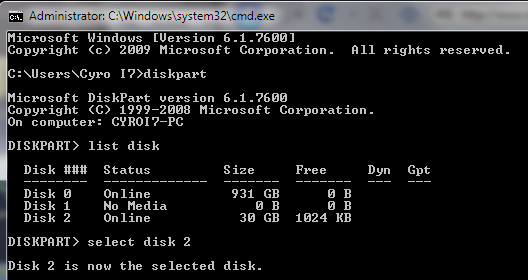
Next type
DISKPART
this loads the diskpart application we need to proceed
Then type
LIST DISK
the image above shows our 32 GB USB drive is listed as DISK 2
so you have to type
SELECT DISK 2 (your USB Drive may have a different number, don’t follow exactly this text it depends on your usb drive)
You will get a successful response “Disk 2 is now the selected disk”
Clean Cmd USB Drive
Next we want to clean the USB drive
Type:
CLEAN
you will get a successful response ‘DiskPart succeeded in cleaning the disk”.
Clean USB Drive

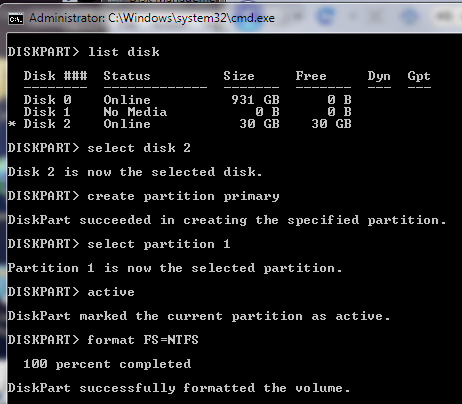
After the drive is cleaned follow the list in the image above (detailed below in list order) – you can also note the successful text responses from the OS as you enter each command.
SELECT DISK 2 (or what number your USB drive has)
CREATE PARTITION PRIMARY
SELECT PARTITION 1
ACTIVE
FORMAT FS=NTFS
Formatting can take a little time depending on the size of the drive, our 32GB unit took about 10 minutes to format - you will see a percentage readout until it is finished.
Bootable USB Final Cmd Prompt
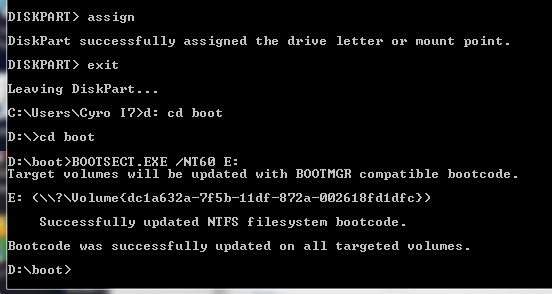
Next type:
ASSIGN
EXIT (DISK PART will exit)
Type D: CD BOOT (substitute the “D” if necessary with the letter of your Windows 7 DVD drive)
then key
CD BOOT
then
BOOTSECT.EXE /NT60 E: (substitute the “E” if necessary with the letter of your now ready USB drive) – we are telling the system to create a boot sector file on the USB drive.
Now you can exit the command prompt and copy all the files on the Windows 7 DVD to the USB drive.
Once this step is finished you’ll be ready to boot from this drive, all you need to do is configure your motherboard bios setup to boot first from USB rather than hard drive or optical drive. If you don’t know how to do this, refer to your specific motherboard manual or search the internet.